Map editor
Navigation: Configuration → Map editor — route /map-editor, or the
Map editor link on the edit page of a game map.
Spawn areas and gates are coordinates on a terrain. Editing them in the generic form means typing numbers; the map editor lets you place them on the rendered terrain of the map instead.
Selecting a map
The drop-down at the top selects the map to edit. Next to it are the buttons to export and import a map, see below.
What you can create
| Object | Purpose |
|---|---|
| Monster spawn area | Where a monster (or NPC) spawns, how many of them, and in which rectangle they may appear |
| Enter gate | The area a player arrives in when entering the map through a gate |
| Exit gate | The area which sends a player to another map, and its target |
Click one of the create buttons, then draw the object on the map. Confirm it with the ✔ button or discard it with ✘.
Editing existing objects
Click an object on the map to focus it. The properties of the focused object are shown next to the map, so you can adjust the details — the monster and its quantity for a spawn area, the target gate and the direction for an exit gate.
With an object focused you can also:
- Duplicate it, which is the quickest way to add a second, similar spawn area
- Remove it
Undo reverts your last action; it works for the whole editing session, until you save.
Saving
Nothing is written to the database until you press Save. Leaving the page without saving discards the changes.
Like the other configuration changes, a modified map takes effect after the game servers reload their configuration — use Reload configuration and restart all game servers on the Servers page.
Export and import
Export map downloads the map's editable content as a JSON file, Import map reads such a file back in.
This is how you
- back up a map before larger changes,
- move a map layout from a test server to your live server,
- share a custom map with someone else.
Import replaces the objects of the currently selected map, so export first if you want to be able to go back.
Terrain editor
Navigation: Configuration → Terrain editor — route /terrain-editor.
The terrain defines for every tile of a map whether it can be walked on, is a safezone, a wall, a hole or water. The terrain editor lets you paint these attributes directly on the map.
Select the map, and in the second drop-down the terrain to edit: the default terrain, or one of the terrain variants which replace it in certain states of the map, e.g. the peace, occupied and war terrains of the Crywolf fortress.
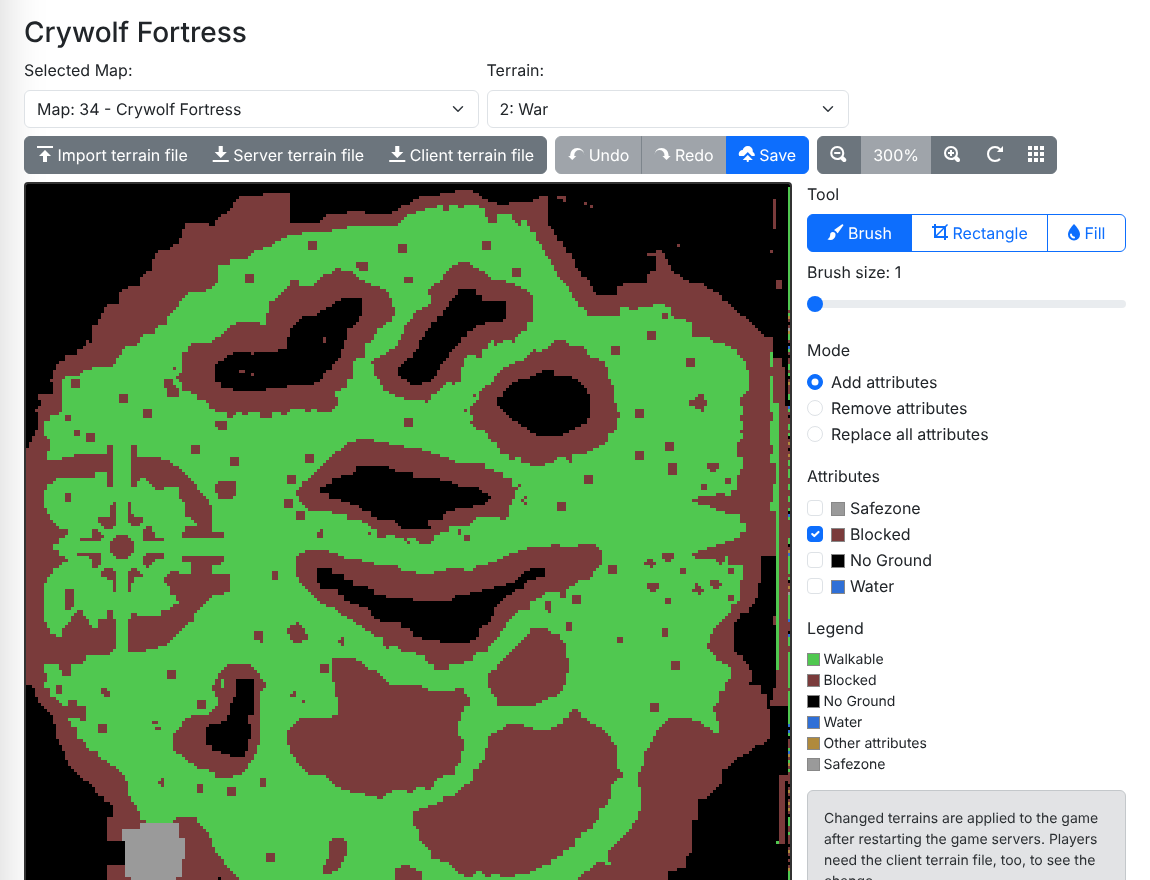
The tools:
| Tool | Edits |
|---|---|
| Brush | The tiles under the cursor while the left mouse button is pressed; the brush size sets the width |
| Rectangle | All tiles of the dragged rectangle |
| Fill | All connected tiles which have the same attributes as the clicked one |
The mode decides what happens to the selected attributes: add them to the tiles, remove them, or replace all attributes of the tiles with them. Replace without any selected attribute makes the tiles plain walkable ground.
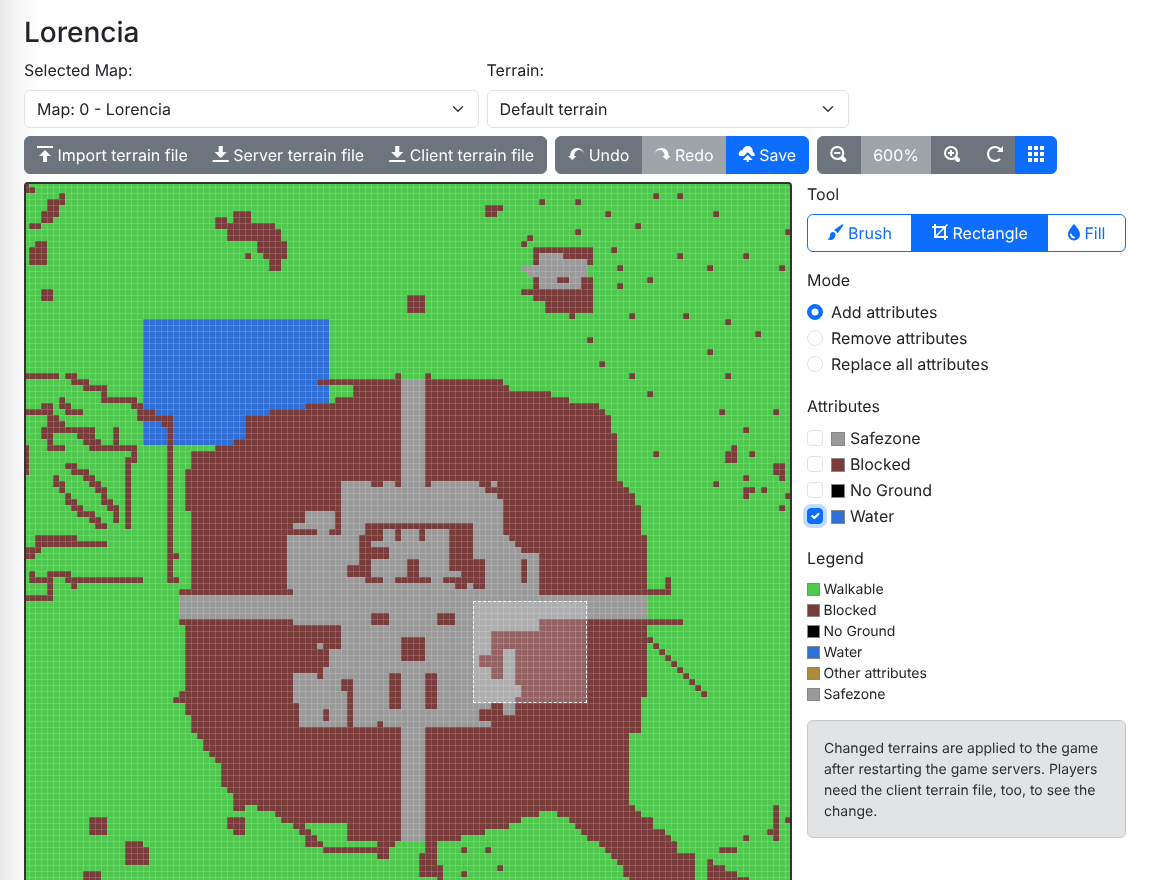
Use the mouse wheel or the zoom buttons to zoom, and drag with the right mouse button to pan. Below the terrain you see the coordinates and the attributes of the tile under the cursor. Undo and Redo work per terrain until you switch to another one; Save writes the changes of all terrains to the database.
Terrain files
- Import terrain file reads a terrain file into the selected terrain. It
accepts both the
*.attfile of the original server and the encryptedEncTerrain*.attfile of the game client. You can undo an import. - Server terrain file downloads the terrain in the
*.attformat of the original server. - Client terrain file downloads the encrypted terrain file of the game
client. The client loads it from
Data\World<N>\EncTerrain<N>.att, where<N>is the map number plus one.
The game servers use a changed terrain after they reloaded their configuration. The game client, however, has its own copy of the terrain: if walls, safezones or water changed, distribute the client terrain file to your players as well. Otherwise characters get stuck or walk through walls on their screen.